ricochet emails you when it cannot deploy or run your app or task. It can also email everyone who can open a task after each good run. Open the item’s Settings > Email tab to set which email ricochet sends.
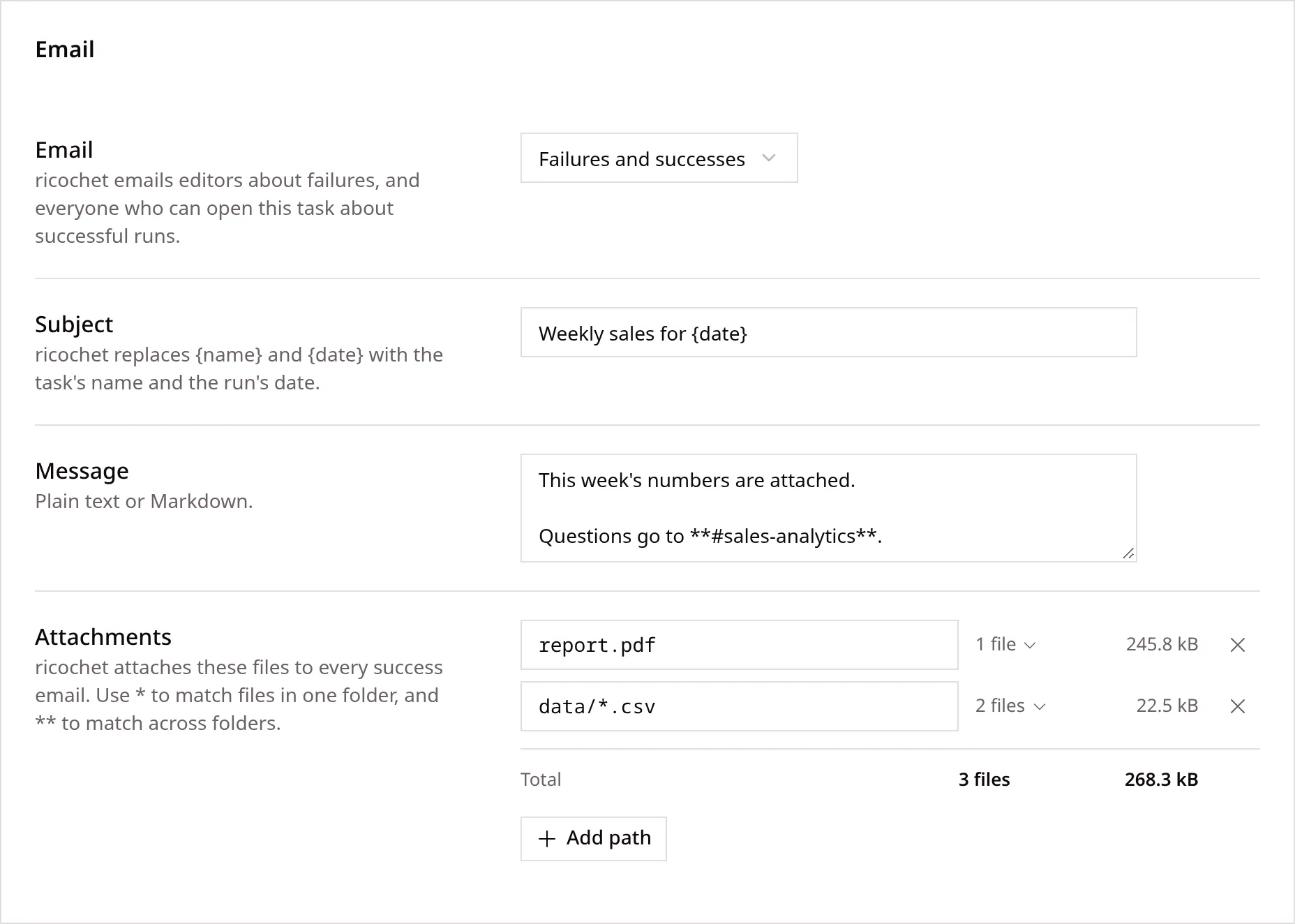
Select one option under Email:
- Failures and successes
- Failures only, which ricochet sets for every new task
- Successes only
- No email
ricochet sends failure email to the task’s owners, admins and editors. ricochet puts the end of the log in each one, with a link to the whole log.
ricochet sends success email to everyone who can open the task. You write it in three fields:
- Subject: ricochet replaces
{name}and{date}with the task’s name and the run’s date, and uses{name} for {date}when you leave it empty. - Message: you write plain text or Markdown.
- Attachments: you list one path or glob pattern per line, inside the run’s output:
report.pdfdata/*.csvricochet attaches up to 20 MiB in total.
Past that, ricochet attaches none of the files and says so in the email.
ricochet never attaches a hidden file or folder, such as .env.
Turn Failures on or off. ricochet turns it on for every new app, and emails the app’s owners, admins and editors when it cannot deploy the app.
Who gets email
Section titled “Who gets email”Editors set which email each person and group gets in the Emails sent column of the Collaborators tab. Editors select from the same four options as a task. You can change your own row there too.
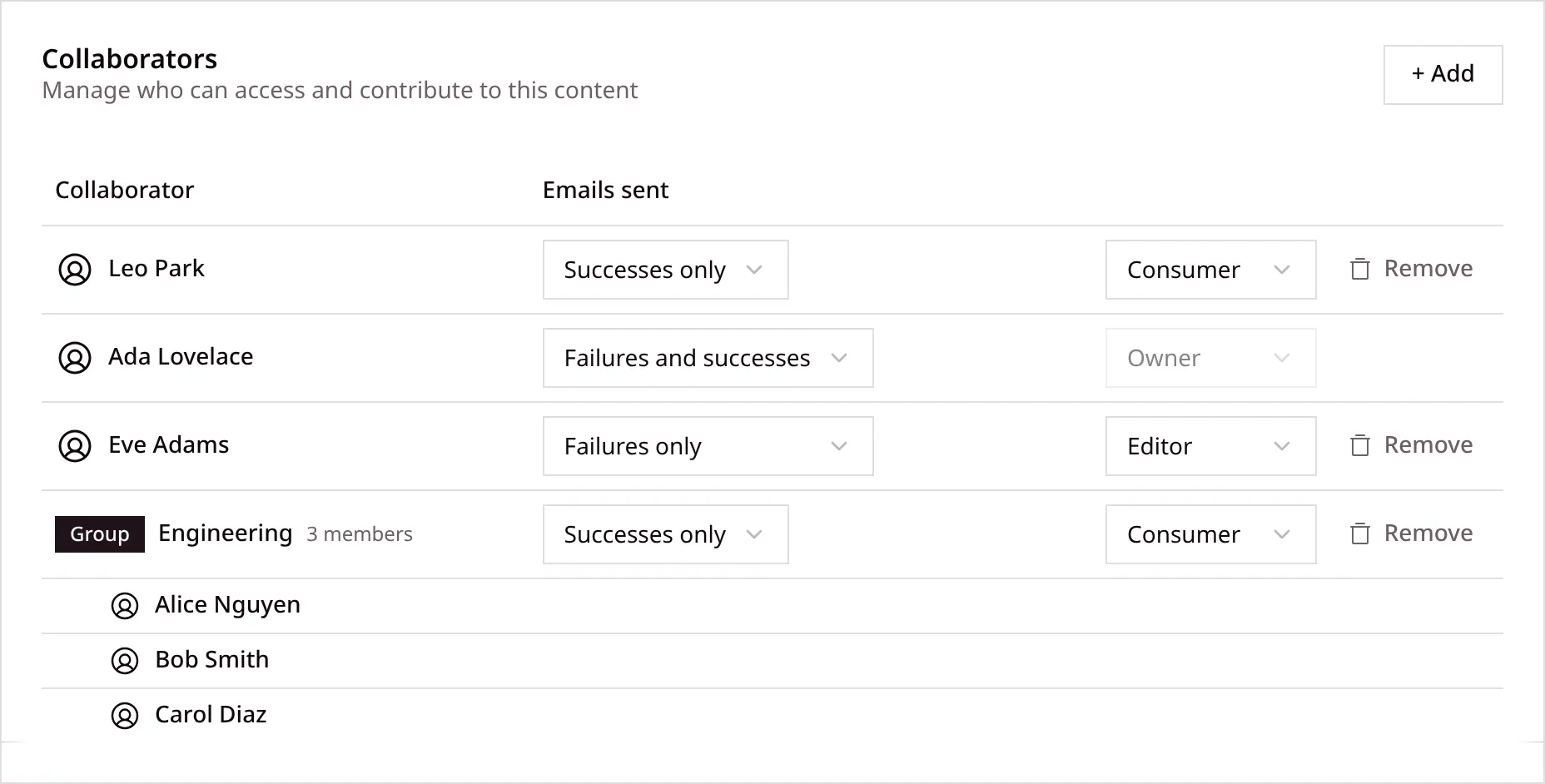
- When you have access of your own and through a group, ricochet follows your own row.
- ricochet sends you failure email through a group only when that group can edit the item.
- To cut down email from every item, open your profile and select an option under Email. ricochet then sends you only the email that both your profile and the item allow.